Getting Started with Custom Dashboards
Learn how to access Custom Dashboards and create your first dashboard.
Accessing Custom Dashboards
- Open the Monitor application and navigate to the main Dashboards page.
- In the left sidebar, switch to the Custom tab.
- You will arrive at the Custom dashboard manager, which displays a table of all your existing custom dashboards. The manager supports searching and filtering dashboards.
Tip
The Custom tab helps you build personalized dashboards from charts across the application. Use it to create focused views for specific workflows or monitoring needs.
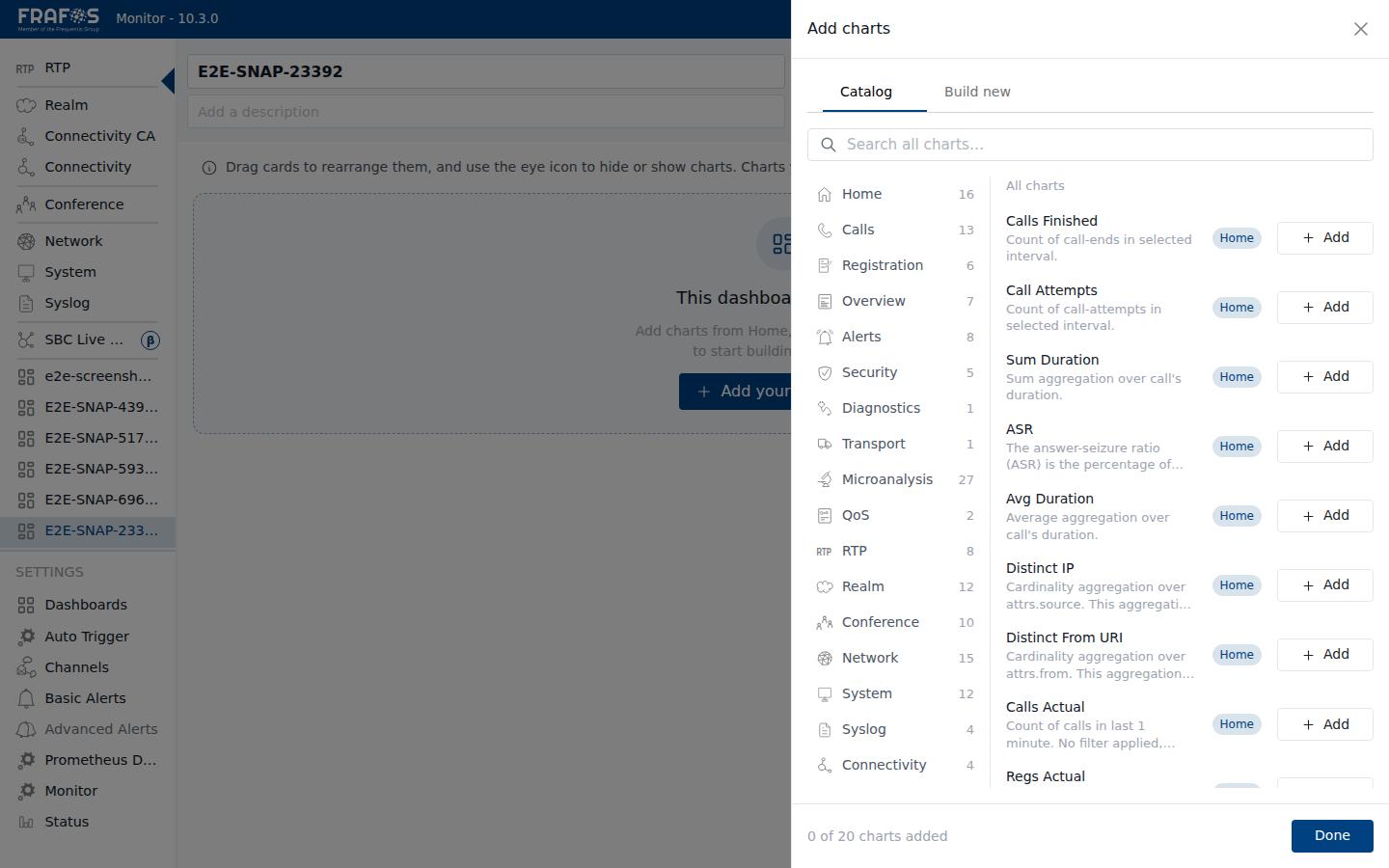
The Custom tab info message explains: "Build your own dashboards from charts across the app. Hiding one removes it from the sidebar; deleting is permanent."
What You'll Find in the Custom Tab
The Custom tab provides:
- Dashboard Manager — A table view of all your custom dashboards with search, visibility toggles, and CRUD actions
- Create Button — A blue "+" button to create a new dashboard
- Empty State — A helpful message and "Add your first chart" button when no dashboards exist
Next Steps
Now that you know how to access Custom Dashboards, you're ready to create your first dashboard:
→ Creating a Dashboard — Learn how to create new blank or duplicated dashboards