Edit Mode
Edit Mode is a powerful feature that allows you to freely rearrange, resize, and experiment with your dashboard layout without immediately persisting changes. It provides a safe "scratchpad" environment for dashboard design.
All changes made in Edit Mode are buffered — meaning they won't be saved to the server until you explicitly click "Save". This gives you complete freedom to experiment without affecting your saved dashboard layout.
- Use Discard all if your experiments go wrong
- Click Save when you're satisfied with your changes
- Try Cancel for preview-only changes that you don't want to keep
Entering Edit Mode
To enter Edit Mode:
- Open any custom dashboard from the Custom tab in the Dashboards page
- Click the Edit button in the dashboard header
When you click Edit, the dashboard enters active editing state:
- Chart cards display outline borders indicating they can be rearranged
- A grid overlay appears showing the 12-column layout structure
- The header buttons change to show Edit Mode controls
- All changes you make are buffered — not persisted until you explicitly save
Edit Mode States
The dashboard goes through three main states during Edit Mode operation:
1. Idle State (Default)
Before entering Edit Mode:
- Only the Edit button is visible in the header
- Charts are in read-only mode
- No grid outline is displayed
- All chart interactions are limited to viewer mode
2. Active (With Unsaved Changes) State
When Edit Mode is active and changes are made:
- Cancel, Save, and Discard all buttons become visible
- A buffer of changes accumulates (drag positions, resize dimensions, visibility toggles)
- Changes are not sent to the server yet
- You can freely experiment without affecting the saved layout
3. Saving State
During save operation:
- The Save button shows a loading spinner
- All buttons are disabled
- The UI prevents further editing until save completes
- Shows success/error notification based on result
Edit Mode Buttons
When Edit Mode is active, the header displays these buttons:
Cancel Button
When visible: Always visible in Edit Mode
Action: Exits Edit Mode without saving any changes
Effect:
- All buffered changes are immediately discarded
- Dashboard returns to its last saved state
- No confirmation is required (since changes aren't persisted yet)
Use case: Quick exit when you decide not to keep your changes
Save Button
When visible: Only when you've made changes in Edit Mode
Appearance: Primary blue button on the left side of the header
Action: Persists all buffered changes to the server
Effect:
- All drag & drop changes are applied to the saved layout
- All resize changes are saved
- All visibility changes are persisted
- Edit Mode exits automatically after successful save
- Dashboard returns to idle state
Loading state:
- During save, the button shows a loading spinner
- Text changes to "Saving..."
- Button is disabled until save completes
Error handling:
- If save fails (network error, server error), an error notification is shown
- Edit Mode remains active — your changes are preserved in the buffer
- You can retry saving or discard changes as needed
Discard all Button
When visible: Only when there are unsaved changes that haven't been saved yet
Appearance: Secondary or danger-styled button in the header
Action: Immediately discards ALL unsaved changes
Effect:
- All drag & drop changes are undone
- All resize changes are reverted
- All visibility changes are restored
- Dashboard returns to last saved state
Use case: Safe experimentation workflow — try different layouts and discard if not satisfied
Warning: This action is immediate — changes cannot be recovered once discarded
Add Charts Button
When visible: Always visible (both idle state and Edit Mode)
Action: Opens the Catalog drawer to browse and add new charts
Important: Charts added via the drawer are buffered but not saved:
- You must click Save in Edit Mode to persist the new chart
- Or click Cancel or Discard all to skip the new chart(s)
Use case: Adding new charts to your dashboard during a layout revision
Toggle Behavior Summary
| Button | Idle State | Active Edit (With Unsaved Changes) | Saving |
|---|---|---|---|
| Edit toggle | "Edit" visible | Becomes "Cancel" | Becomes "Cancel" |
| Save button | Hidden | Visible (blue) | Visible (spinning) |
| Discard all | Hidden | Visible | Hidden |
| Add charts | Always visible | Always visible | Always visible |
Unsaved Changes Warning
The unsaved changes warning protects you from accidentally losing your work when you have unsaved changes and try to leave the current dashboard.
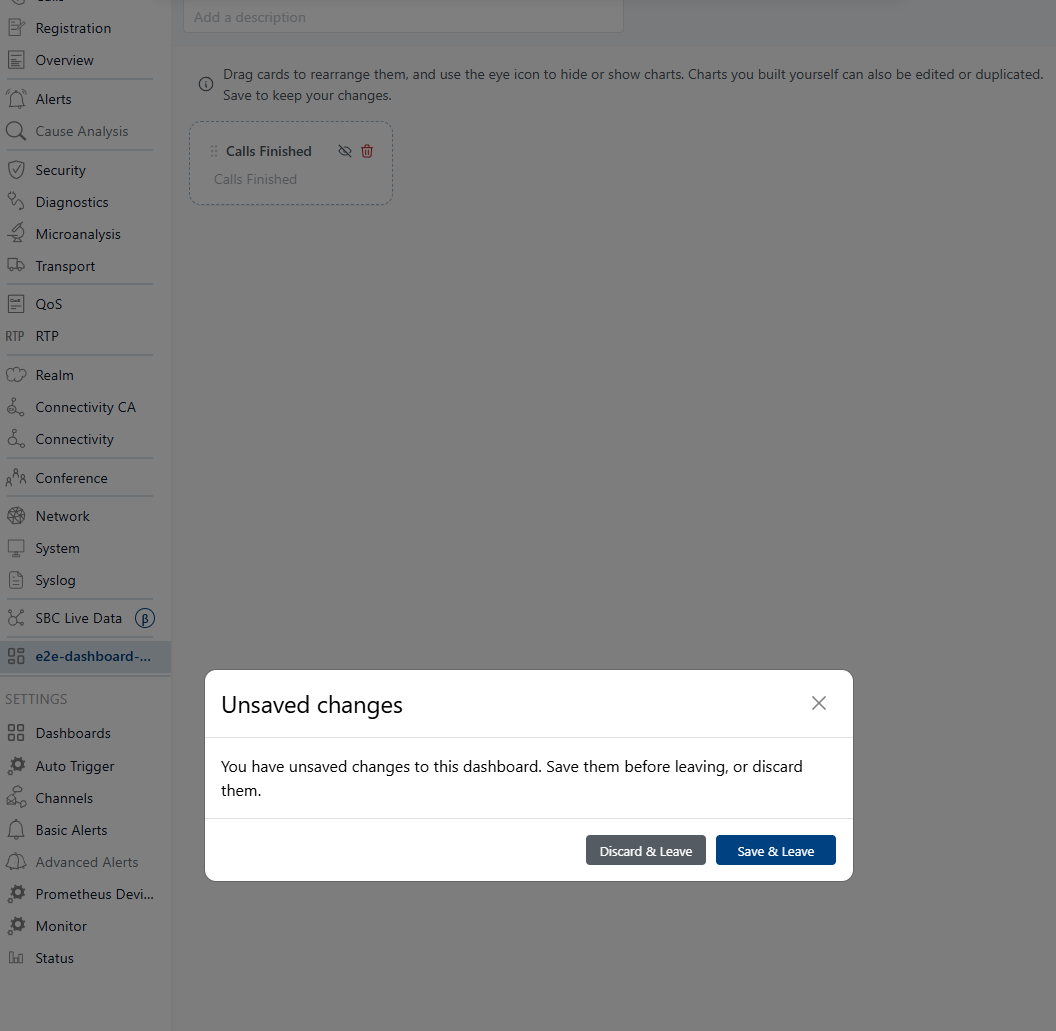
When Does It Appear?
The unsaved changes warning modal appears when all three conditions are true:
- Edit Mode is active
- There are unsaved changes (you've made edits but haven't saved them yet)
- Navigation is attempted via:
- Clicking a different dashboard link in the sidebar
- Using the browser's back or forward buttons
- Refreshing the page
- Closing the browser tab
- Navigating to a different route while in Edit Mode
The modal does NOT appear when:
- You're just clicking internal Edit Mode controls (Save, Cancel, Discard all)
- You've already saved or discarded changes
- You're in a clean state (no unsaved changes)
- The auto-save has completed successfully
Modal Content
When the modal appears, it displays:
Title: "Unsaved changes"
Message: "You have unsaved changes. Discard them and navigate away?"
Action buttons:
- Discard (destructive/secondary button)
- Continue (primary button)
Button Behaviors
Discard (Destructive Button)
Appearance: Secondary or danger-colored button on the right side
Action: Immediately abandons all unsaved changes and navigates away
Effect:
- All buffered changes are permanently lost
- Dashboard reverts to its last saved state
- Navigation to the target location proceeds immediately
- The action is irreversible — changes cannot be recovered
Use case:
- You've experimentally changed the layout but decide not to keep it
- You want to navigate away without saving
- You accidentally entered Edit Mode and want to leave without changes
Warning: This action permanently discards all changes. There is no undo.
Continue (Primary Button)
Appearance: Primary blue button on the left side
Action: Cancels the navigation attempt and returns to editing
Effect:
- Modal is dismissed
- You remain on the current dashboard
- Edit Mode stays active
- All buffered changes are preserved
- You can continue making changes or explicitly save/discard
Use case:
- You're not ready to leave yet
- You want to save first before navigating
- You need more time to complete your edits
Note: This is the same effect as clicking outside the modal if click-outside-to-dismiss is allowed.
Complete Navigation Scenarios
Scenario 1: Save & Navigate
Steps:
- Enter Edit Mode
- Make changes (drag charts, resize, toggle visibility)
- Notice the Save button becomes visible
- Click sidebar to navigate to another dashboard
- Modal appears
- Click "Discard"
- All changes are lost
- Navigation to target dashboard occurs
Result: Dashboard is navigated to; original changes are lost
Scenario 2: Discard & Navigate (Intentional)
Steps:
- Enter Edit Mode
- Make changes
- Click browser back button
- Modal appears
- Click "Discard & Leave"
- Changes are permanently lost
- Browser navigates back
Result: Browser history moves back; changes are lost
Scenario 3: Cancel Navigation
Steps:
- Enter Edit Mode
- Make changes
- Attempt to navigate (sidebar, back button, etc.)
- Modal appears
- Click "Continue" (or press Escape if supported)
- Modal closes
- You remain on the current dashboard
Result: Navigation is prevented; you continue editing
Scenario 4: Save First, Then Navigate
Steps:
- Enter Edit Mode
- Make changes
- Click Save in the header
- Wait for save to complete (spinner + success notification)
- Navigate away (no warning modal will appear since changes are saved)
Result: Changes are preserved; no warning modal on navigation
Edge Cases
Race Condition: Auto-Save During Navigation
If you have auto-save enabled and are attempting to navigate:
- Auto-save completes before modal: No warning (changes are already persisted)
- Auto-save is in progress: Modal may still appear
- Auto-save fails: Modal appears with changes still in buffer
- Network error during auto-save: Error toast appears, modal shows changes remain unsaved
Multiple Consecutive Navigation Attempts
- Only one modal can be displayed at a time
- If you try to navigate while a modal is already showing:
- The existing modal remains visible
- Subsequent attempts are queued
- You must respond to the current modal first
Escape Key Behavior
Depending on implementation:
- Escape may: Close the modal and stay on page (Continue behavior)
- Escape may: Not work at all (modal must be explicitly dismissed)
- Escape never: Discard changes (too dangerous)
Confirm Dialog Alternative
Some implementations use a browser's native confirmation dialog:
You have unsaved changes. Discard them and navigate away?
[Discard] [Continue]
This is less customizable but provides familiar browser behavior.
Best Practices
- Save before leaving: Click Save in the header before attempting to navigate, especially after meaningful changes
- Be deliberate with "Discard": Remember that discarding is permanent — changes cannot be recovered
- Use "Discard all" instead: If you want to exit Edit Mode without saving, use the Discard all button first, then navigate (no modal will appear)
- Don't rely on "Continue": Using "Continue" to delay navigation doesn't save your work permanently — changes can still be lost if you close the tab or encounter an error
- Auto-save doesn't mean save: Auto-save may exist in the background, but explicit Save ensures your changes are persisted
- Watch for the dirty indicator: The active/dirty state is your signal that unsaved changes exist
Error Handling
Save Fails After "Discard & Leave"
If you click "Discard" but a previous save attempt fails:
- Changes are immediately discarded
- The failed save error is shown as a toast notification
- Navigation still proceeds
Modal Closes Unexpectedly
Rare cases where the modal might close without explicit action:
- Page refresh during modal display
- Browser crash
- JavaScript error
- Session expired
In these cases, the browser's default behavior applies (usually data loss).
UX Design Rationale
The unsaved changes warning follows established UX patterns:
- Prevents accidental data loss: Most common cause of user frustration
- Provides clear choices: Discard vs. Continue are mutually exclusive outcomes
- Destructive action is clear: "Discard" button is visually distinct (danger color)
- Primary action is safe: Continue preserves user's current state
- Modal is non-dismissible: User must make a deliberate choice (no clicking outside)
- Clear messaging: Explicitly states what will happen with each choice
Visual States
With Unsaved Changes (No Navigation Attempted)
- Edit Mode is active
- Save and Discard all buttons are visible
- All changes are buffered (not yet saved)
Navigation Attempt-Modal Appears
Modal Overlay Effect
When the modal appears:
- Entire dashboard is blurred or dimmed
- Modal is centered with shadow and elevation
- Modal has no backdrop click-to-dismiss
- Modal has no Escape to discard (only continue if supported)
- All other UI elements are unresponsive
Related Controls
Edit Mode Header Button States
| Button | Idle | With Unsaved Changes | Saving |
|---|---|---|---|
| Edit | Visible-Edit Mode | Transforms to Cancel | Transforms to Cancel |
| Save | Hidden | Visible (blue, enabled) | Visible (blue, spinning) |
| Discard all | Hidden | Visible (secondary/danger) | Hidden |
Cancel Button Behavior
Clicking Cancel has different behavior than "Discard" in the modal:
- Cancel in Edit Mode: Immediately exits without modal, discards all changes
- Discard in modal: Discards changes AND navigates away
- Discard all in Edit Mode: Discards all changes but stays in Edit Mode
Summary
The unsaved changes warning is a critical safety mechanism:
- Triggers: Unsaved changes + navigation attempt
- Purpose: Prevent accidental data loss
- Choices: Discard (lose everything, navigate) or Continue (stay, preserve changes)
- Consequence: Discard is permanent; Continue preserves state
- Best practice: Save before navigating, or use Discard all early if not keeping changes
Rearrange Charts (Drag & Drop)
- Click and hold any chart card's header or body
- Drag to a new grid slot
- Release to drop the chart in the new position
- The change is buffered (not saved until you click Save)
Resize Charts
- Grab the resize handlers on the edges or corners of a chart card
- Drag to resize within the 12-column grid
- The new dimensions are buffered
- Charts cannot overflow their grid boundaries
Toggle Chart Visibility
- Use the visibility toggle on each chart card
- Hidden charts are marked as "hidden" in the buffer
- The effect is not visible in the grid until you save
Remove Charts
- Click the Remove (delete) icon on any chart card
- The chart is removed from the buffer
- If you Save, the chart is permanently removed
- If you Cancel or Discard all, the chart reappears
Add Charts
- Use the "Add charts" button to open the Catalog drawer
- Browse available charts by type (Prometheus, Elasticsearch, etc.)
- Select charts to add
- Added charts appear as new buffer items
Edit Chart Configuration
- Click the Edit (pencil) icon on any chart card
- The configuration drawer opens pre-filled with existing settings
- Modify the chart configuration
- Changes are buffered along with layout changes
Tips
- Edit Mode is safe: Changes aren't persisted until you click Save
- Use Discard all: If experimentation goes wrong, this gives you a clean slate quickly
- Watch for the warning: The unsaved changes modal prevents accidental data loss when navigating away
- Save frequently: Especially when making many changes in a single Edit session
- Add charts doesn't save: Charts added from the Catalog are buffered but not persisted until you click Save
- Try before committing: Enter Edit Mode to experiment with layout ideas before committing them
- Error handling: If Save fails, your changes are still in the buffer — just try again
Edit Mode vs. Chart Configuration
Edit Mode is for layout and arrangement:
- Rearranging chart positions
- Resizing chart dimensions
- Managing overall dashboard layout
Chart Configuration is for content and behavior:
- Modifying query parameters
- Changing data sources
- Adjusting display options
You can:
- Edit chart configuration from Edit Mode (click Edit icon on each card)
- Change layout while configuring a chart (changes buffer when you save the configuration)
Related Content
Managing Your Dashboard Charts — Learn about chart actions on the grid Adding Charts from Catalog — How to add new charts to your dashboard Dashboard Manager — Full CRUD management of dashboards