Creating Custom Dashboards
Creating a New Dashboard
From the Custom dashboard manager, click the "New dashboard" button (a blue button with a + icon, top-right of the page).
You can create up to 10 custom dashboards. Each can contain up to 20 charts.
A modal opens with the following options:
- Dashboard name (required, up to 60 characters) — a descriptive name for your dashboard.
- Description (optional, up to 280 characters) — a longer explanation of what the dashboard monitors.
- Starting point — choose between:
- Blank dashboard — start empty and add charts yourself.
- Duplicate a dashboard — pick one of the built-in dashboards (Home, Calls, RTP, etc.) and copy its charts into your new custom dashboard as a starting point.
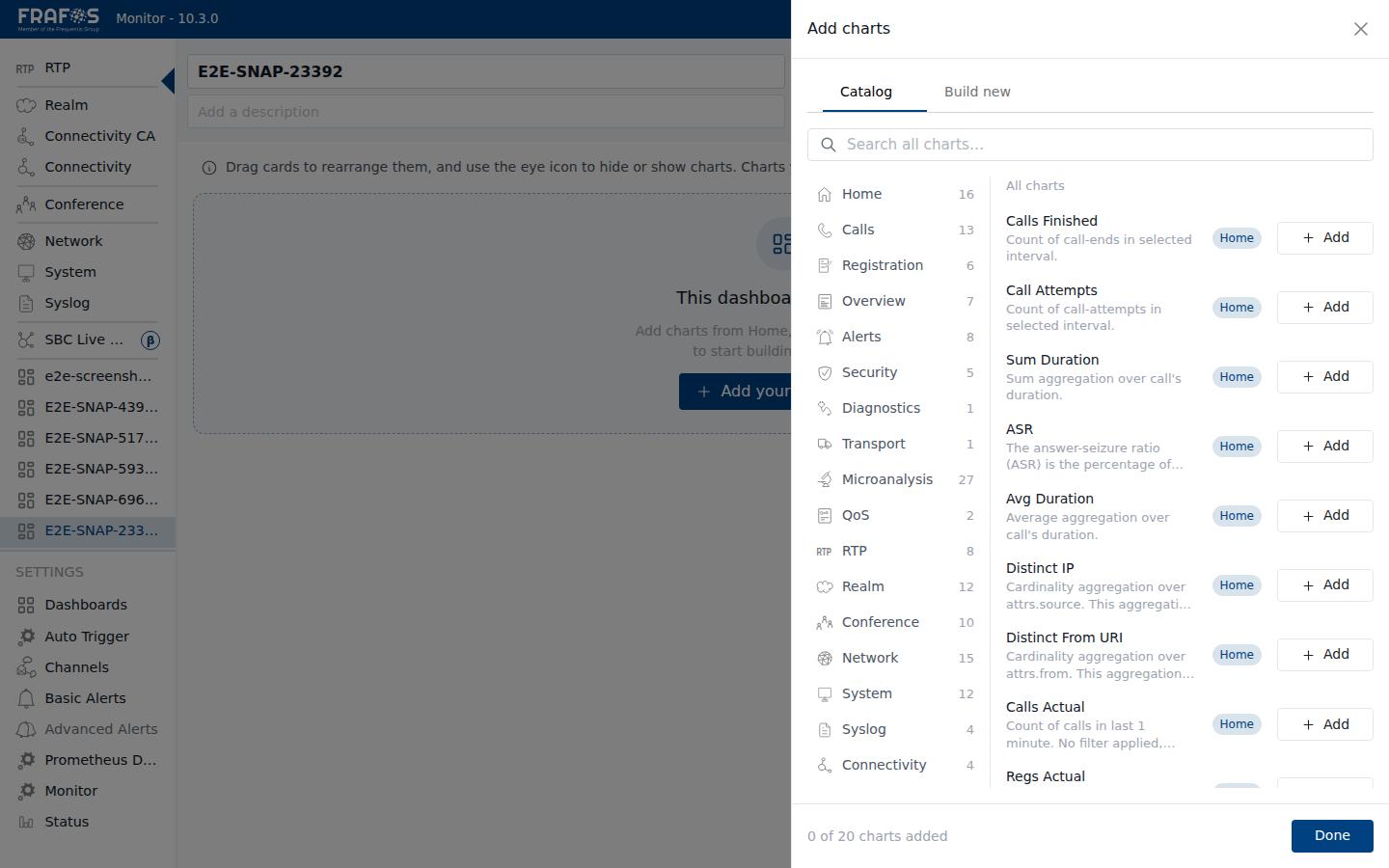
Click Create (or Create & edit if adding charts upfront). If successful, you are taken to a new empty dashboard view.
On a fresh dashboard, you will see a centered empty-state message: "This dashboard is empty. Add charts from Home, Calls, RTP and more to start building your view." with a big "Add your first chart" button.
Use "Duplicate a dashboard" if you want a head start with pre-configured charts. You can then modify them to fit your needs.
Next Steps
Now that you've created a dashboard, you can:
→ Add Charts from Catalog — Browse and add pre-built charts → Build Custom Charts — Create new charts from scratch