Status Dashboard
Stay up-to-date with the health and performance of your system using the Status Dashboard. This dashboard provides real-time notifications and key metrics for CPU, memory, disk, Vector, events, peak calls, and Elasticsearch indices.
- Notifications
- CPU
- Memory
- Disk
- Vector
- Peak Calls
- Elasticsearch
- Indices Stats
- SQLite
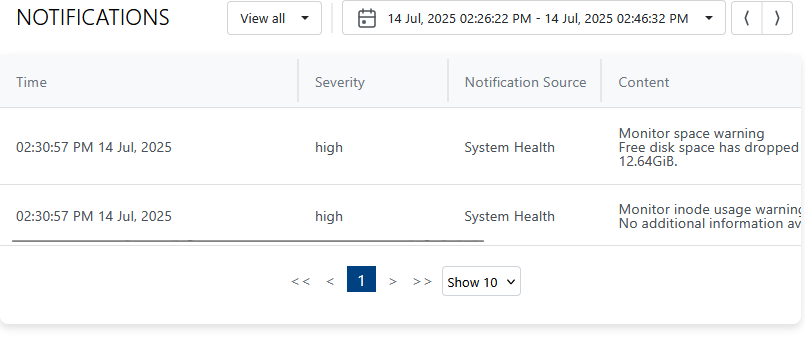
Displays system notifications and alerts, helping you stay informed about important events and issues.
Review notifications regularly to catch problems early.
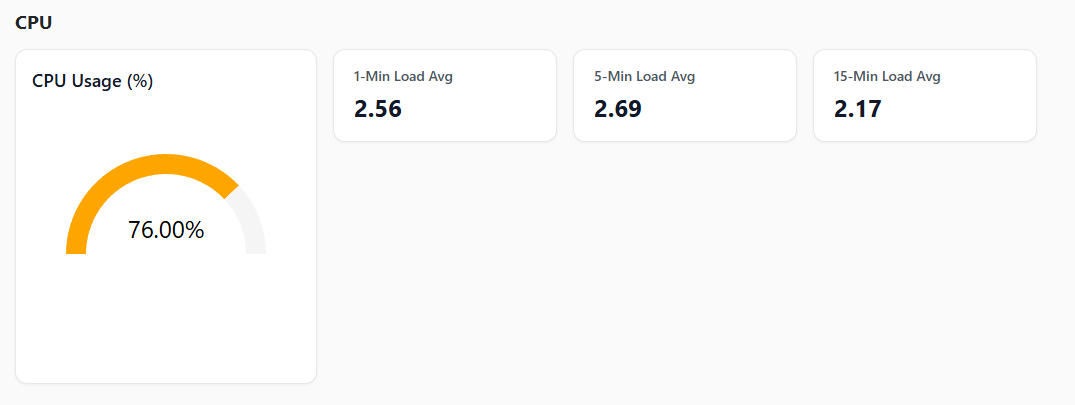
Shows current CPU usage and trends, allowing you to monitor processing load.
High CPU usage may indicate heavy workloads or performance bottlenecks.

Displays memory usage statistics, helping you track available and used memory.
Low available memory can lead to degraded performance or crashes.
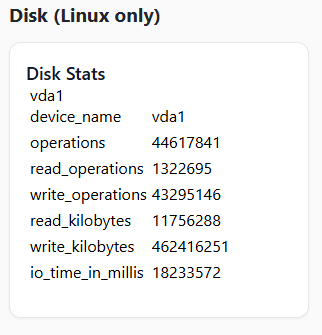
Shows disk usage and free space, important for maintaining system stability.
Monitor disk space to prevent storage-related outages.
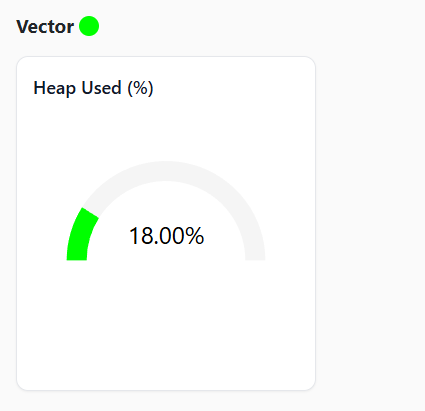
Provides status and metrics for Vector, your log processing pipeline.
Check Vector health to ensure logs are being processed correctly.
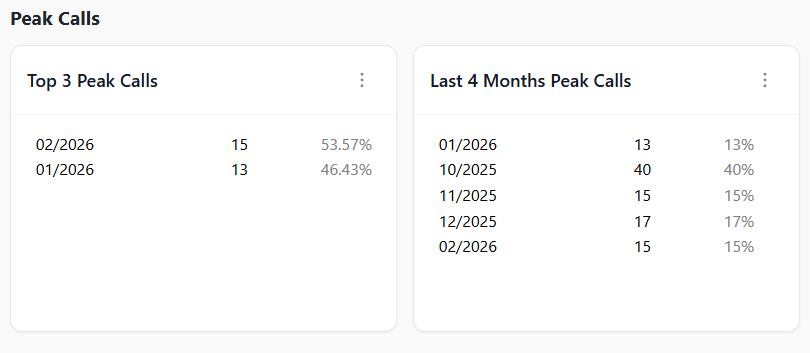
Shows the highest number of concurrent calls observed, useful for capacity planning.
Use this to track system limits and plan for scaling.
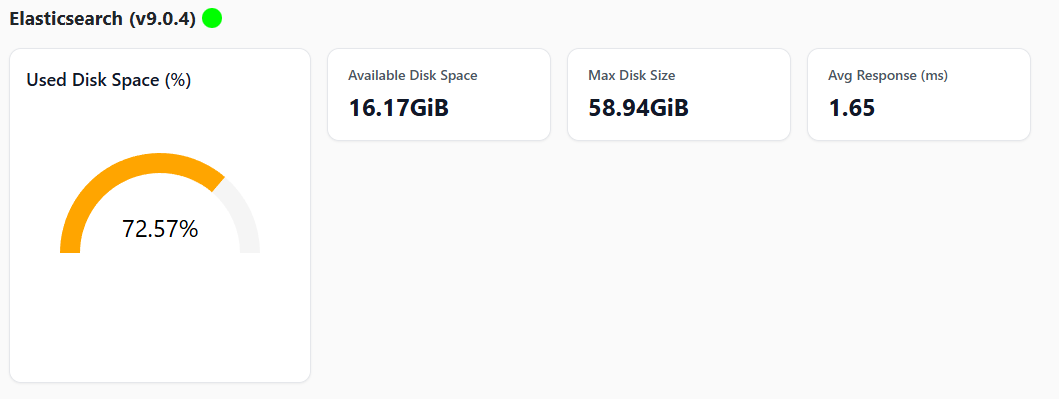
Provides an overview of Elasticsearch health and status.
Monitor Elasticsearch to ensure search and analytics are functioning properly.
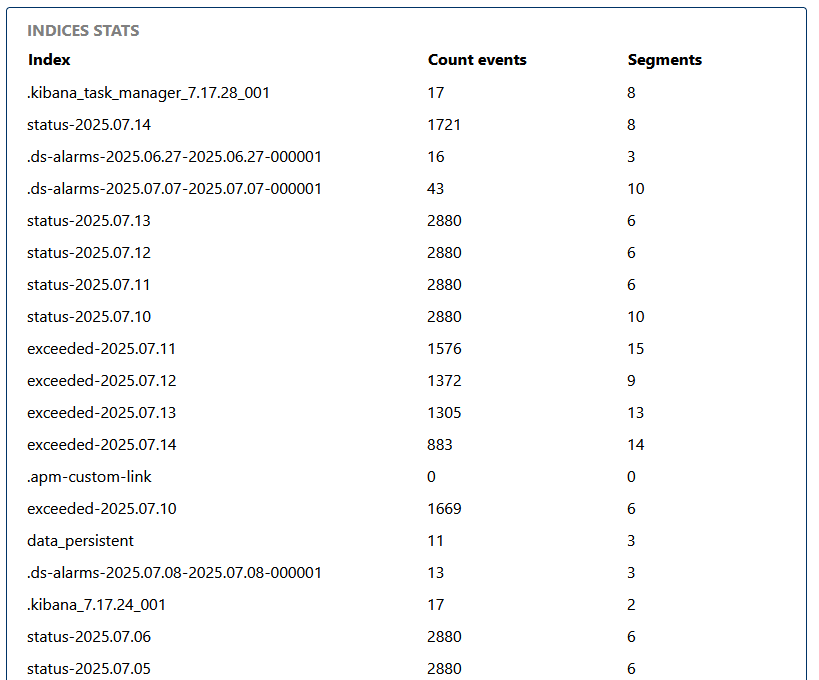
Displays detailed statistics for Elasticsearch indices, such as size, document count, and health.
Use indices stats to optimize search performance and storage.

Shows the health of Monitor's internal SQLite database: database and write-ahead log (WAL) size, page/freelist counts, disk I/O, and the latency of an independent health probe. A details view with historical charts for each metric is available via the "Details" button.
Details charts:
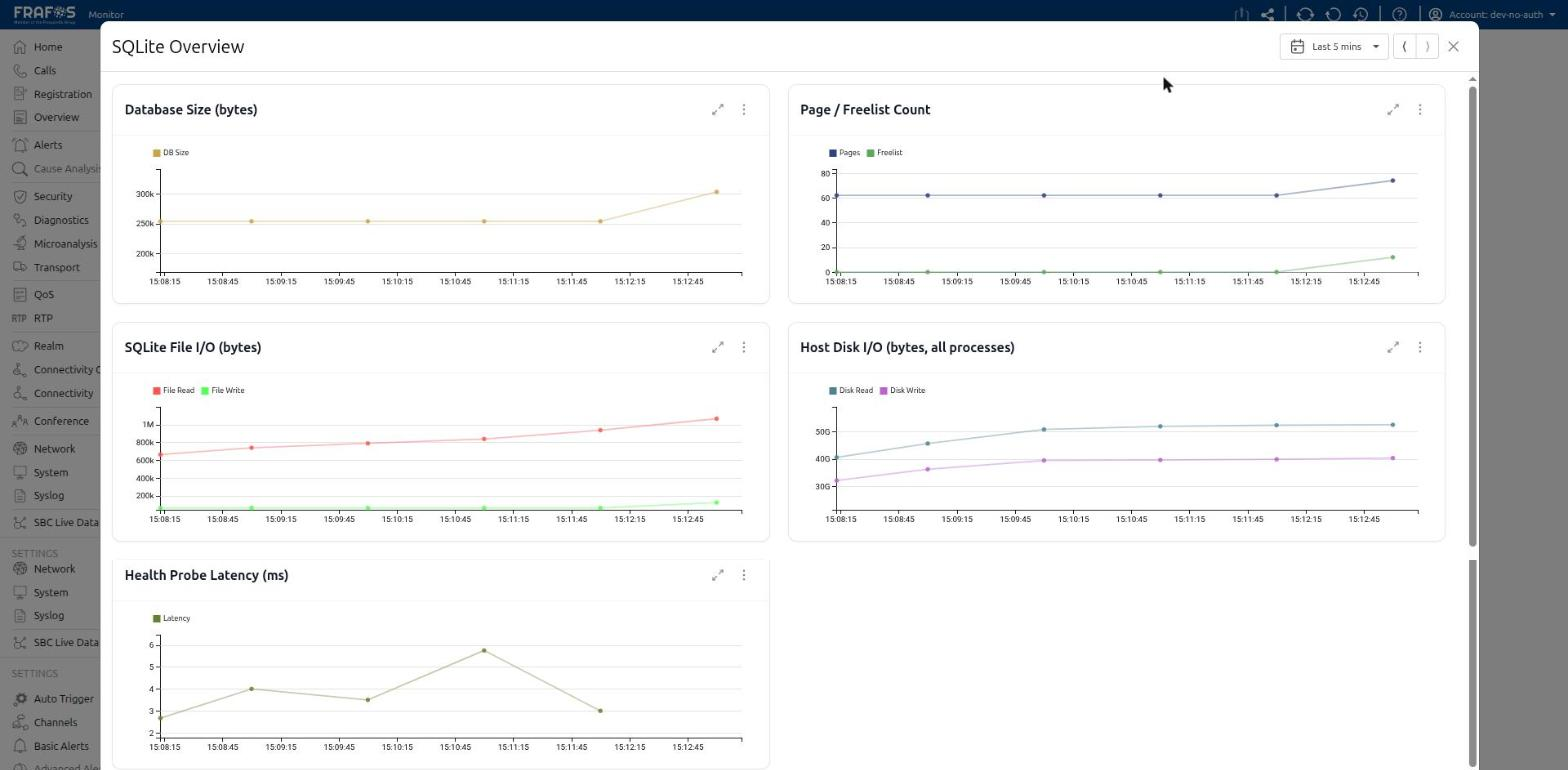
- Database Size (bytes): On-disk size of the main database file and its write-ahead log (WAL).
- Page / Freelist Count: Total pages in the database file, and how many are free/reclaimable.
- SQLite File I/O (bytes): Bytes read/written to
sqlite.dbspecifically, traced viabpftrace. Only populated when the container/host grantsbpftracethe required capability, seccomp/AppArmor permissions and tracefs mount — see the warning below. - Host Disk I/O (bytes, all processes): Whole-disk read/write bytes across every process, not just SQLite — a no-privileges-needed fallback for context, always available even without
bpftrace. - Health Probe Latency (ms): Round-trip time of an external HTTP health check against this server, sampled by a process independent of Node — stays informative even if Node itself is stuck.
Metrics are sampled by a standalone collector process running outside of Monitor's own event loop, so they keep reporting even if Monitor itself is stalled by database lock contention. The collector is disabled by default; set a sampling interval from Settings → System Health → SQLite → SQLite metrics collection interval (s), or via the SQLITE_METRICS_INTERVAL_SECS environment variable, to enable it (0 disables it again) — changing either restarts just the collector process, not the rest of Monitor.
Attributing disk I/O to the SQLite database file specifically (rather than the whole disk) requires bpftrace, which needs the CAP_SYS_ADMIN container capability, a host /sys/kernel/debug mount, and runs as root via a setuid binary inside the image — a real increase in the container's privilege footprint. This is optional: without it, the rest of the SQLite metrics are unaffected and I/O falls back to whole-disk counters.
On Podman specifically, CAP_SYS_ADMIN plus /sys/kernel/debug alone is not enough: Podman's default seccomp profile blocks perf_event_open, which bpftrace needs regardless of capabilities; on AppArmor-enabled hosts (Debian/Ubuntu by default), Podman's default AppArmor profile independently blocks access to /sys/kernel/tracing/kprobe_events too, failing with a plain Permission denied even once seccomp is unconfined. See the Quadlet installation guide for the full opt-in capability/seccomp/AppArmor/mount set this needs.