Suppress Notifications
Monitor displays warning notifications at the top of the screen when the system detects a configuration that may need your attention — for example, when no notification channels are configured, or when System Health monitoring has not been assigned to a channel.
These warnings are rechecked every 30 minutes. You can suppress any you don't want to see.
Suppressing a warning
Warnings that can be suppressed show a Stop showing this warning button below the warning text, next to a bell-off icon.

Clicking the button:
- Closes the toast immediately.
- Adds the warning to your profile's notification suppressed list.
- Stops the same warning from appearing on subsequent checks.
The action is recorded in the server logs as a suppression event for audit purposes.
Note: Suppression is per user. Other users on the same Monitor instance continue to see the warning until they suppress it themselves.
Re-enabling a suppressed warning
To bring a warning back:
- Open Monitor → General.
- Locate the Suppressed warnings config.
- Remove the warning from the list of selected items.
- Save your changes.
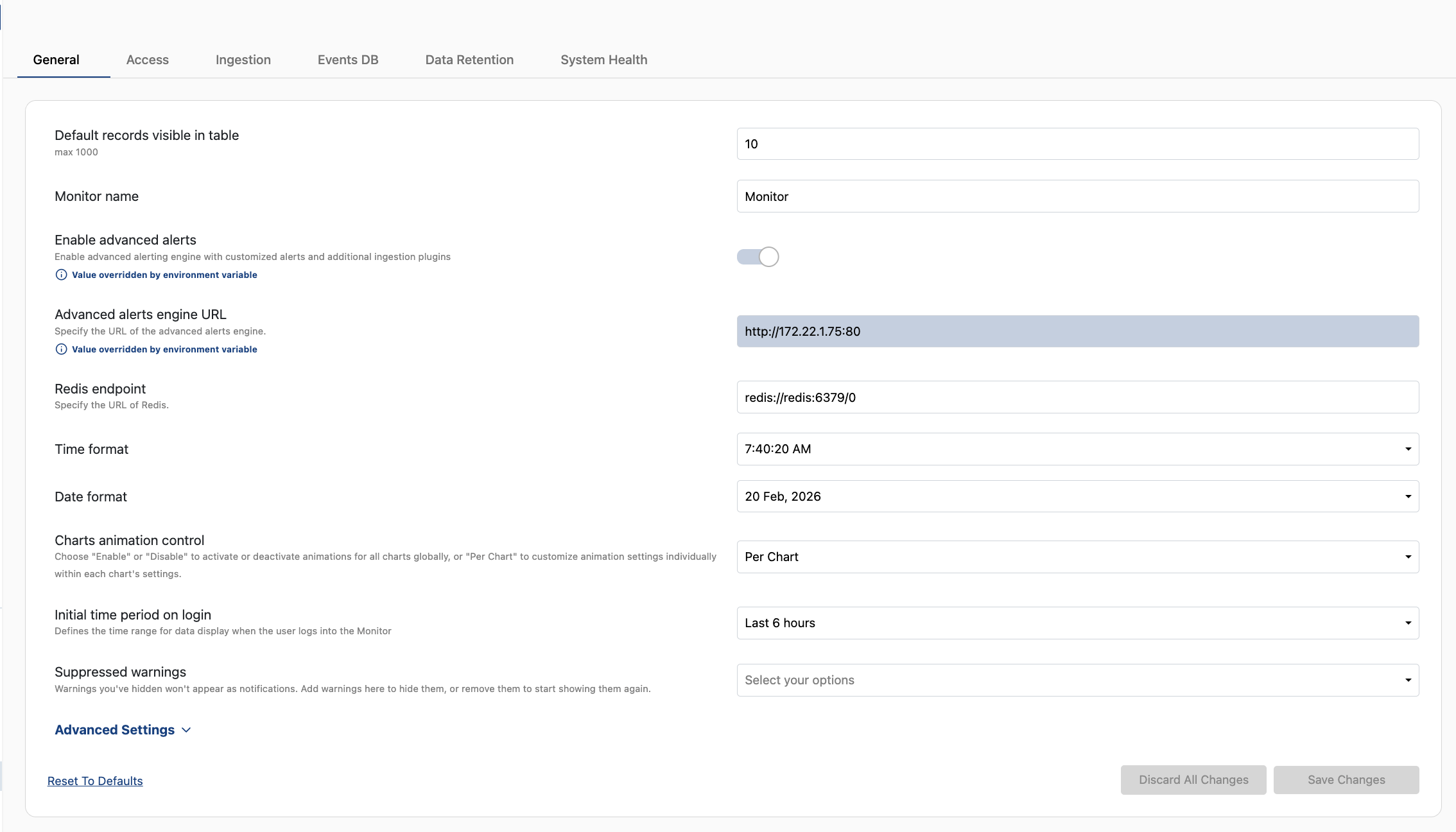
The next periodic check (within 30 minutes) will display the warning again if the underlying condition still applies.
You can also use the same field in reverse: selecting a warning here suppresses it without waiting for the notification to appear.
Reset behaviour
Reset to defaults in the General tab also clears your suppressed warnings. Any warnings you previously suppressed will appear again on the next check.