Auto-Refresh
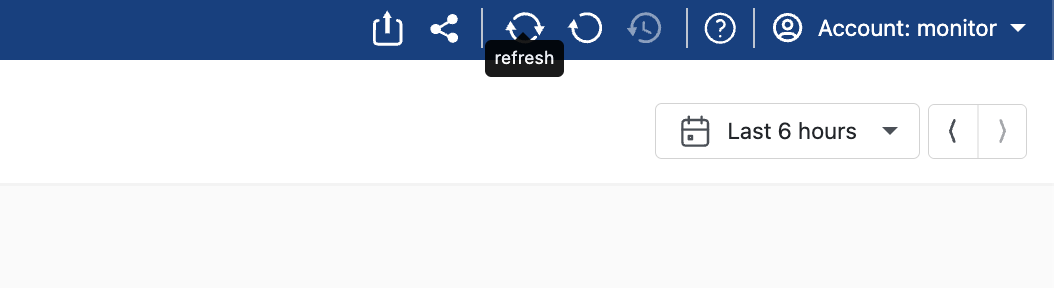
The Auto-Refresh feature keeps your dashboard data up to date in real time without requiring manual intervention. It is accessible from the top bar of any dashboard.
How It Works
When enabled, Auto-Refresh automatically slides your current time window forward at a regular interval, refetching fresh data each time. Your selected time window duration stays the same, only the start and end times move forward to reflect the current moment.
For example, if you are viewing the last 1 hour of data and enable Auto-Refresh every 30 seconds, the dashboard will update every 30 seconds to always show the most recent 1-hour window ending at "now".
Data loads silently in the background. Charts update in place, so your monitoring experience remains uninterrupted.
Getting Started
- Click the Refresh icon in the top bar of your dashboard.
- A configuration popup will appear with two controls: a Start/Pause toggle and a Refresh Every input where you can set the interval.
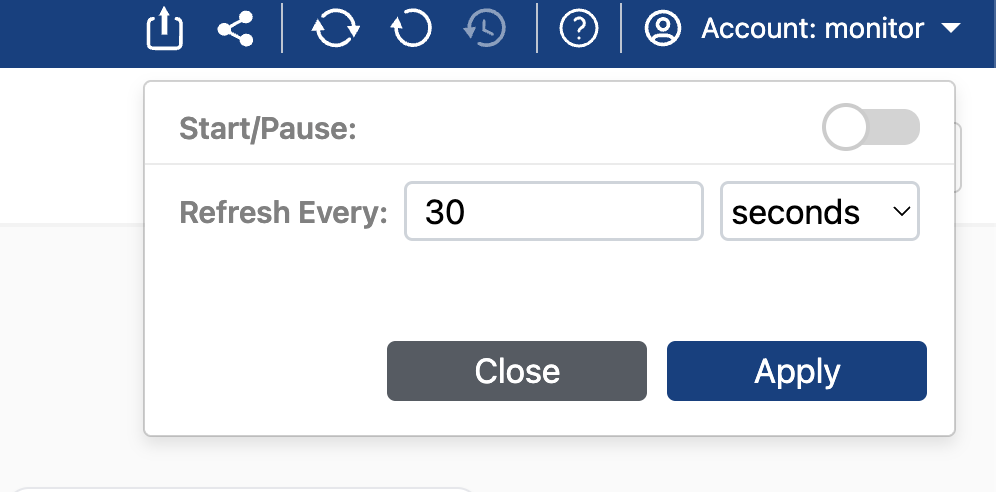
- Set your desired refresh interval by entering a number and selecting a unit (seconds, minutes, or hours).
- Click Apply to start auto-refreshing.
The first refresh happens immediately. Subsequent refreshes follow at the interval you configured.
Saved Settings
Your Auto-Refresh configuration, including the enabled/paused state, interval value, and unit is saved to your user profile. This means your settings persist across sessions or page reloads. If you close the browser and come back later, your last configuration will be restored automatically.
Refresh Interval Limits
| Unit | Minimum | Maximum |
|---|---|---|
| Seconds | 10 | 3,600 (1 hour) |
| Minutes | 1 | 1,440 (1 day) |
| Hours | 1 | 168 (1 week) |
Status Indicator
While Auto-Refresh is active, a status indicator appears next to the Refresh icon showing the time of the last successful data update (for example "Updated: 2:45:30 PM"). and a brief pulse animation plays each time new data is loaded, giving you visual confirmation that the dashboard is being kept current.
Pausing and Resuming
To pause Auto-Refresh, click the Refresh icon to open the popup, then toggle Start/Pause to off. The refresh cycle stops and the status indicator disappears. Your dashboard remains on whatever time window was last loaded.
To resume, toggle it back on or click Apply with your desired settings. Refreshing resumes immediately.